 SURVIVAL APPS
How to verify an APK before you install it
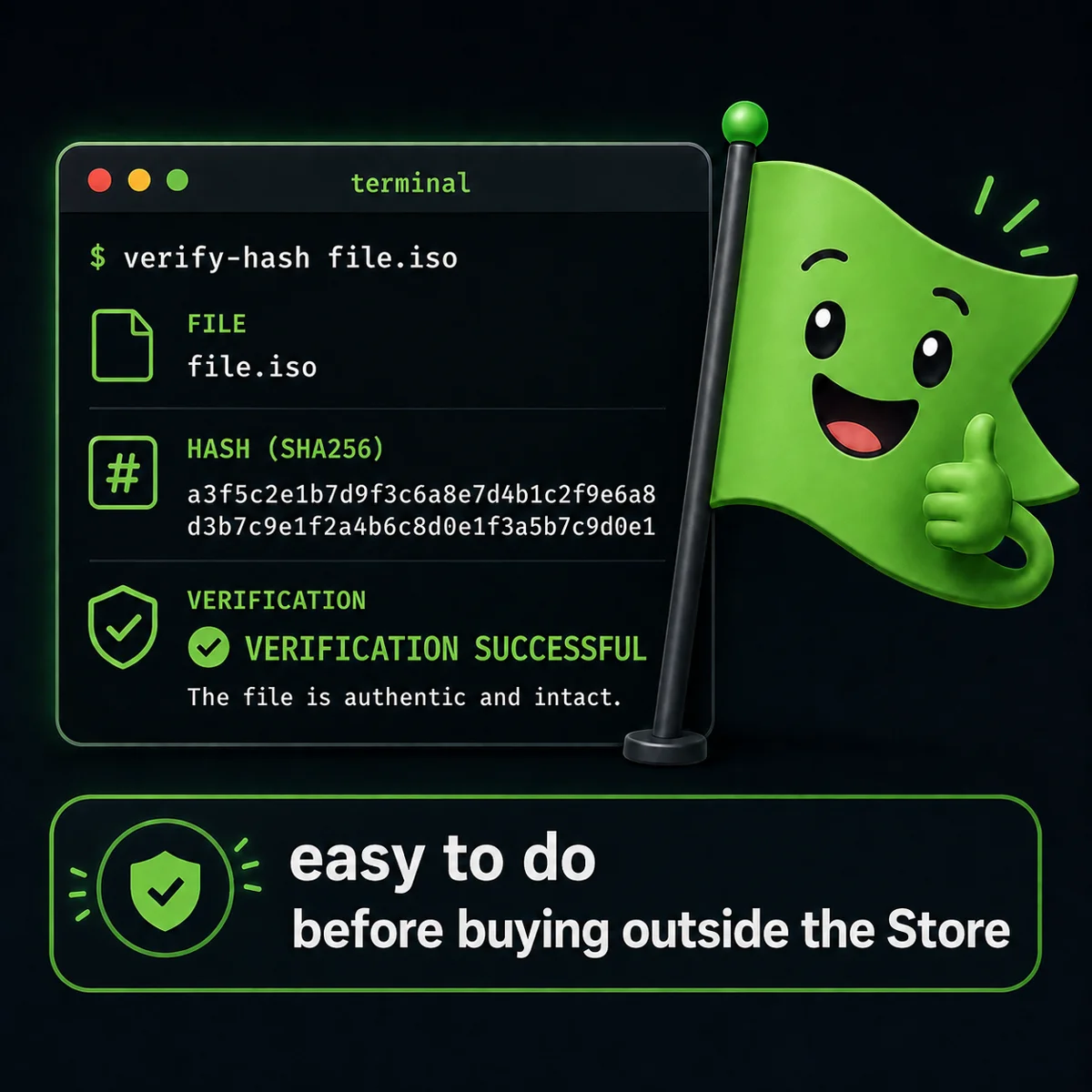
A file that enters your system without passing through the guarded gates should be treated like a stranger at the door: you don't throw it out, you don't hug it, you ask for ID. An APK's fingerprint can be read in thirty seconds, with tools you already have installed. This transmission is that procedure, step by step.
Why verify instead of just trusting
Downloading an APK from an independent site instead of the Play Store is, rightly, a reason for suspicion: outside the store you lose Google's automatic checks, and an .apk file can be modified without you noticing. The right answer isn't "trust me" — it's giving you the tools so you don't have to. Every Survival Apps app now publishes, on its product page, the SHA-256 hash of the correct file and a link to its VirusTotal scan report. This guide explains what they are and how to use them, whether you're checking one of my APKs or anyone else's.
The SHA-256 hash: the file's fingerprint
A cryptographic hash[1] is a 64-character sequence computed from the exact contents of a file: change even a single byte and the hash changes completely. If the hash of the file you downloaded matches the one published on the product page, you have mathematical certainty that it's the same file — not a tampered version, not a file cleverly renamed to look like the right one.
How to compute it, system by system
- WINDOWS — open PowerShell in the download folder and run
Get-FileHash nomefile.apk -Algorithm SHA256 - MACOS — from Terminal:
shasum -a 256 nomefile.apk - LINUX — from the terminal:
sha256sum nomefile.apk - ANDROID — straight from your phone, without installing anything: all you need is the browser and VirusTotal (step by step below)
In every case, compare the result, character by character, with the hash published at the bottom of the app's product page. Don't try to eyeball it from memory: paste both into a text editor and check that they're identical.
On Android, from your phone: three steps
On a phone, computing the hash is the awkward part: there's no system tool for it, and installing a terminal just for this is overkill. The simplest route uses the browser and VirusTotal, which computes the hash for you:
- Download the APK from the site or from Payhip, as usual, but don't open it yet.
- Open
virustotal.comin your browser, tap Choose file and select the APK you just downloaded from your Downloads folder. VirusTotal analyzes it and shows its SHA-256 in the Details tab. - Compare that value with the hash published in the Payhip description or on the product page. If it matches, the file is the right one and you can install it. If it doesn't, delete it and download again from scratch from the original source.
For a file I've already published, VirusTotal recognizes the hash and shows you the existing report directly, without a new scan: that's already a good sign. One common-sense warning: uploading a file to VirusTotal means sharing it with the service, so use this method for public APKs, not for private files or ones with your own data inside.
> 9ef39d53...977095b BioRadar-v1.0.1-release.apk
> comparison with the product page: IDENTICAL
Reading a VirusTotal report
VirusTotal[2] has dozens of different antivirus engines scan the file and shows a count: how many flag it, how many don't. Zero detections out of seventy engines is a good sign, but not an absolute guarantee — and one or two isolated false positives, on a file every other engine considers clean, happen often with less widespread Android apps and aren't an alarm in themselves. What should make you suspicious is the opposite: a hash that doesn't match, or a report nobody ever linked to you directly from the source.
Frequently asked questions
Is checking the hash enough, or do I need VirusTotal too?
The hash tells you the file is the right one, not that it's safe at the source. VirusTotal adds a second, independent check. Use them together, not one instead of the other.
What if the hash doesn't match?
Don't install the file, and restart the download from the original product page: a different hash means the file you're holding isn't the one that was published, whatever the reason.
Where can I find this verification for the apps sold on Survival Apps?
The "Verify the file before installing" block is live on the product pages of BioRadar, EcoSurvivor and HotSummer, updated with every release alongside the APK — the same discipline described in the piece on ownership versus subscription.
The construct leaves no fingerprints a hash could capture. But every honest file does — and that, at least, is verifiable.
Notes
- Cryptographic hash — a mathematical function that turns a file of any size into a fixed-length string (for SHA-256, 64 hexadecimal characters). Even a minimal change to the file produces a completely different hash, which makes it a reliable tool for checking that two copies of a file are identical byte for byte. ↑ back to text
- VirusTotal — an online service (owned by Google/Chronicle) that analyzes files and URLs with dozens of antivirus engines at the same time and publishes a report anyone can view via a direct link. ↑ back to text